Screen damage can range from minor scratches to complete display failure. Early detection helps you decide whether to repair, replace, or continue using your device. This comprehensive guide covers all types of screen damage and how to identify them.
Table of Contents
1. Visual Inspection for Screen Damage
What to Look For
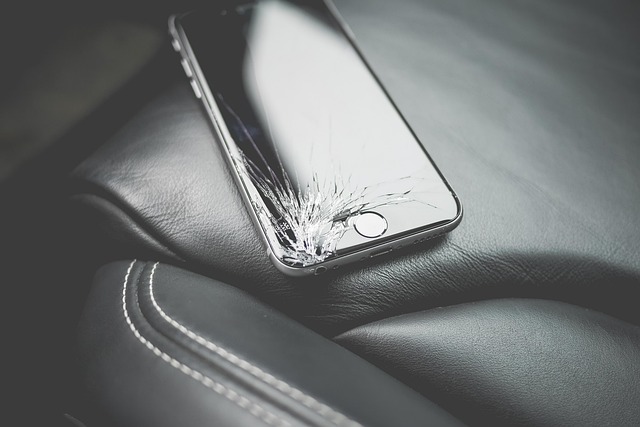
Cracks
Visible lines or spiderweb patterns, especially after drops or impacts
Scratches
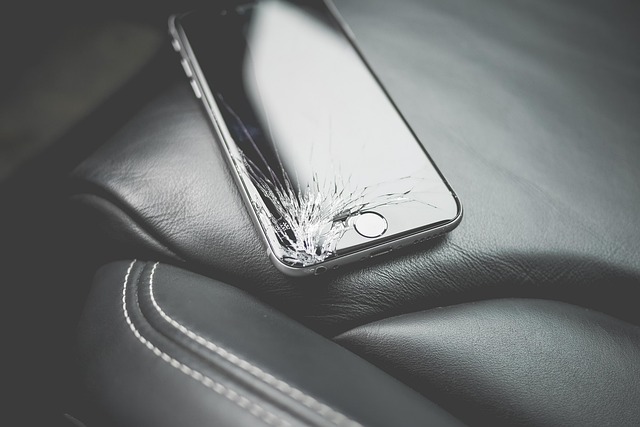
Surface abrasions that catch light or affect touch sensitivity
Discoloration
Yellowing, dark spots, or color shifts indicating LCD damage
Black Spots
Dead areas that don't display any content
Lines or Bands
Vertical or horizontal lines across the screen indicating display driver or panel issues
Pro Tip: Turn off your device and examine the screen under bright light at different angles. Cracks and scratches are easier to see when the screen is off.
Screen Damage Severity Guide
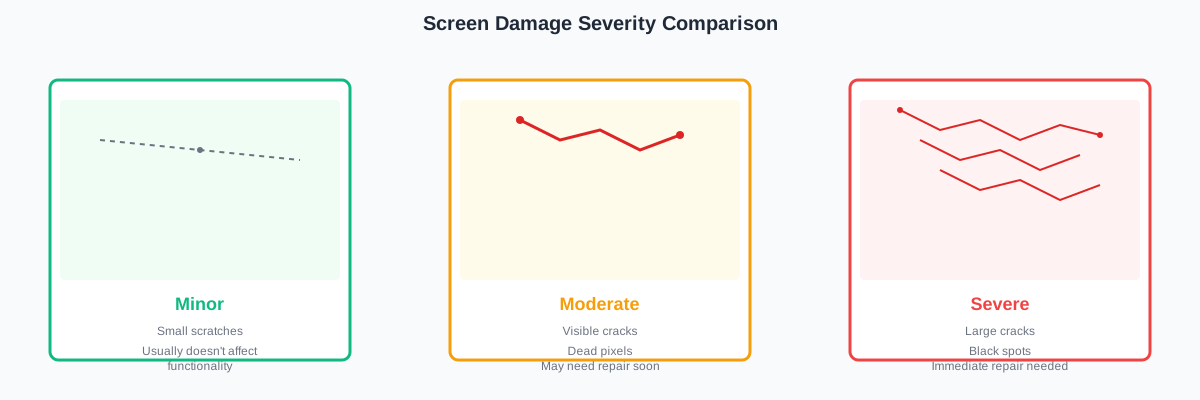
Small scratches, minor discoloration. Usually doesn't affect functionality.
Visible cracks, dead pixels, touch issues. May need repair soon.
Large cracks, black spots, no display. Immediate repair or replacement needed.
2. Dead Pixel Test
Quick Test
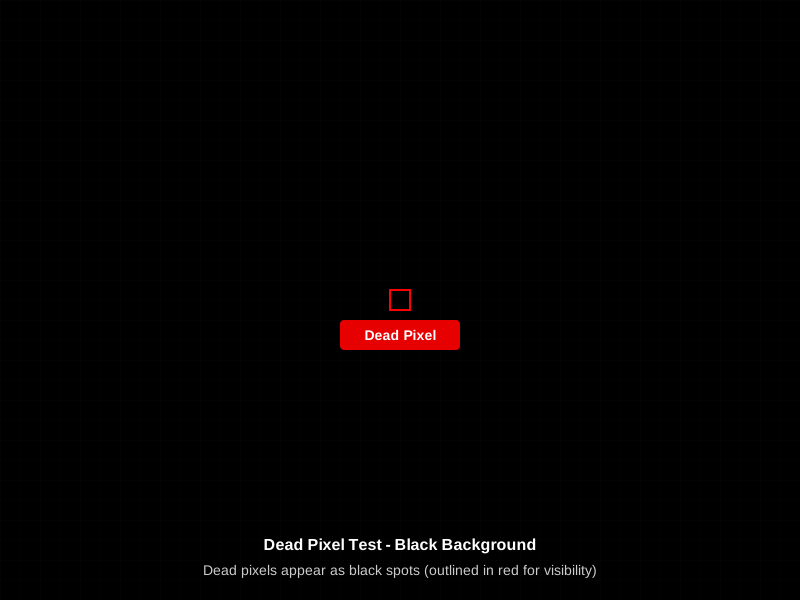
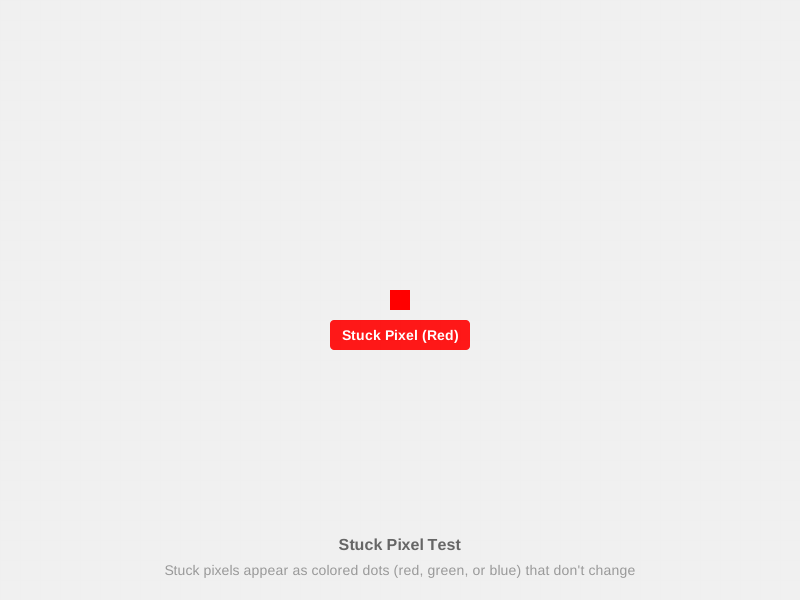
Dead pixels are individual pixels that don't display any color (black) or are stuck on a single color. They're common and can be detected with simple tests.
How to Test for Dead Pixels

-
1
Use Online Tools: Visit dead pixel test websites that display solid colors (red, green, blue, white, black)
-
2
Check Each Color: Look for pixels that don't match the background color
-
3
Count Dead Pixels: Most manufacturers allow 3-5 dead pixels before warranty replacement
Recommended Screen Test Apps
Use these apps to thoroughly test your screen for dead pixels and other issues:
📱 Screen Test Apps Available on App Store / Google Play
Amazon affiliate links will be integrated here for screen testing tools and apps
3. Screen Burn-in Detection
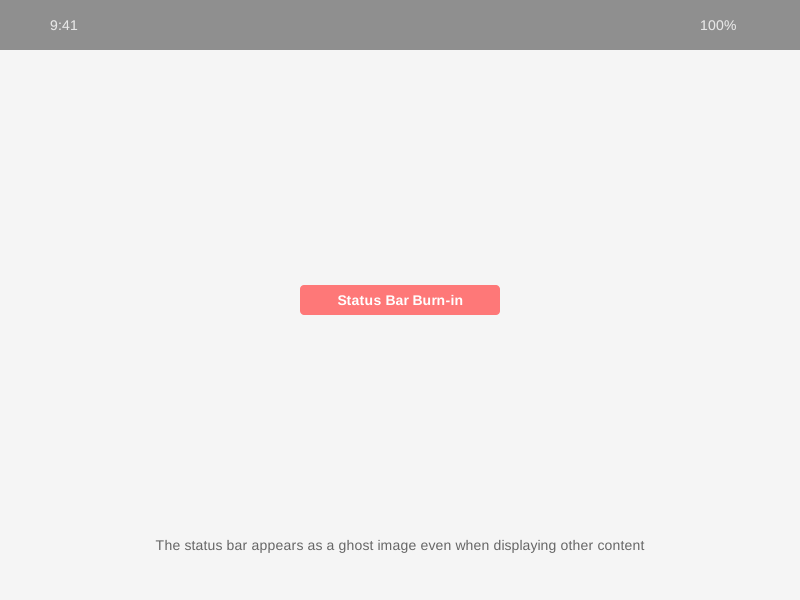
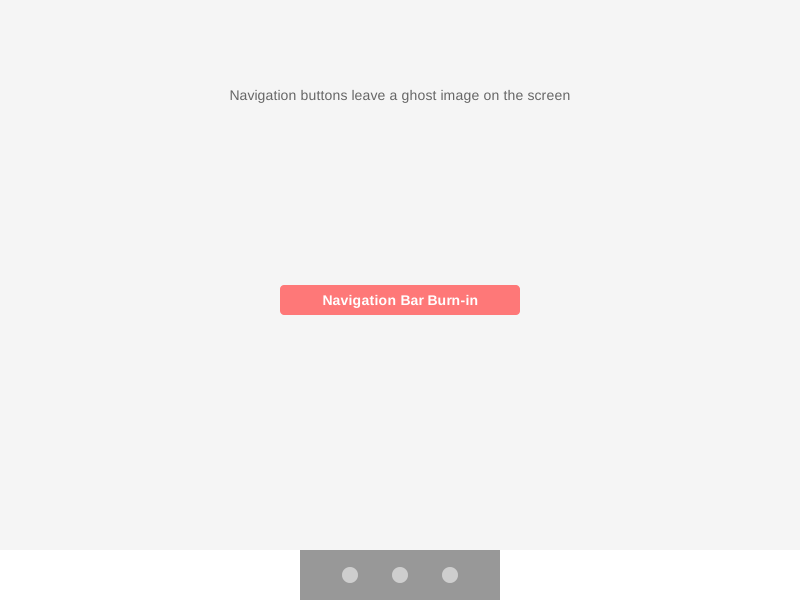
Burn-in (or image retention) occurs when static images are displayed for extended periods, leaving a "ghost" image on OLED and some LCD screens.
How to Test for Burn-in
- Display a solid white screen for 30 seconds
- Switch to solid red, green, and blue screens
- Look for ghost images or discolored areas
- Check for persistent UI elements (navigation bars, status bars)
Common Burn-in Areas:
- • Status bar (top of screen)
- • Navigation buttons (bottom of screen)
- • Keyboard outlines (on phones)
- • App icons or logos
4. Touch Screen Problems
Touch screen issues can range from unresponsive areas to phantom touches. Here's how to diagnose them.
Unresponsive Areas
Parts of the screen don't respond to touch
Common Causes: Cracked digitizer, water damage, loose connections
Phantom Touches
Screen registers touches without input
Common Causes: Screen damage, software issues, electrical interference
Quick Touch Test:
Draw lines across your entire screen using your finger or stylus. Check for gaps, jumps, or areas that don't register touch.
5. Backlight Issues
Backlight problems cause uneven brightness, dark spots, or complete screen blackout while the device is still functioning.
Signs of Backlight Failure
- • Screen appears completely black but device is on
- • Uneven brightness across the screen
- • Dark corners or edges
- • Flickering or dimming
- • Screen is visible only at maximum brightness
Test Method:
Shine a flashlight on the screen. If you can see content with the flashlight, the backlight is likely damaged, not the LCD itself.
6. Color Accuracy Test
Color accuracy issues can indicate screen damage, calibration problems, or hardware defects.
What to Check
- • Color shifts (red, green, or blue tint)
- • Washed out colors
- • Inability to display certain colors
- • Color banding in gradients
7. When to Repair vs Replace
Decision Guide
✅ Repair If:
- • Device is less than 2 years old
- • Repair cost is less than 50% of device value
- • Only minor damage (scratches, few dead pixels)
- • Device is still under warranty
- • You have sentimental value attached
❌ Replace If:
- • Repair cost exceeds 70% of device value
- • Multiple components are damaged
- • Device is 3+ years old
- • Screen damage affects functionality significantly
- • You want to upgrade anyway
Need Professional Help?
Get quotes from local repair shops near you. Compare prices and read reviews.
Shop Replacement Screens
If you've decided to replace your screen, check out these options:
🛒 Replacement Screens on Amazon
Amazon affiliate links will be integrated here for replacement screens by device type